

Step 1: Create a Datadog API key
In Datadog, go to Organization Settings > API Keys and create a new key.Step 2: Enable Broadcast in OpenRouter
Go to Settings > Observability and toggle Enable Broadcast.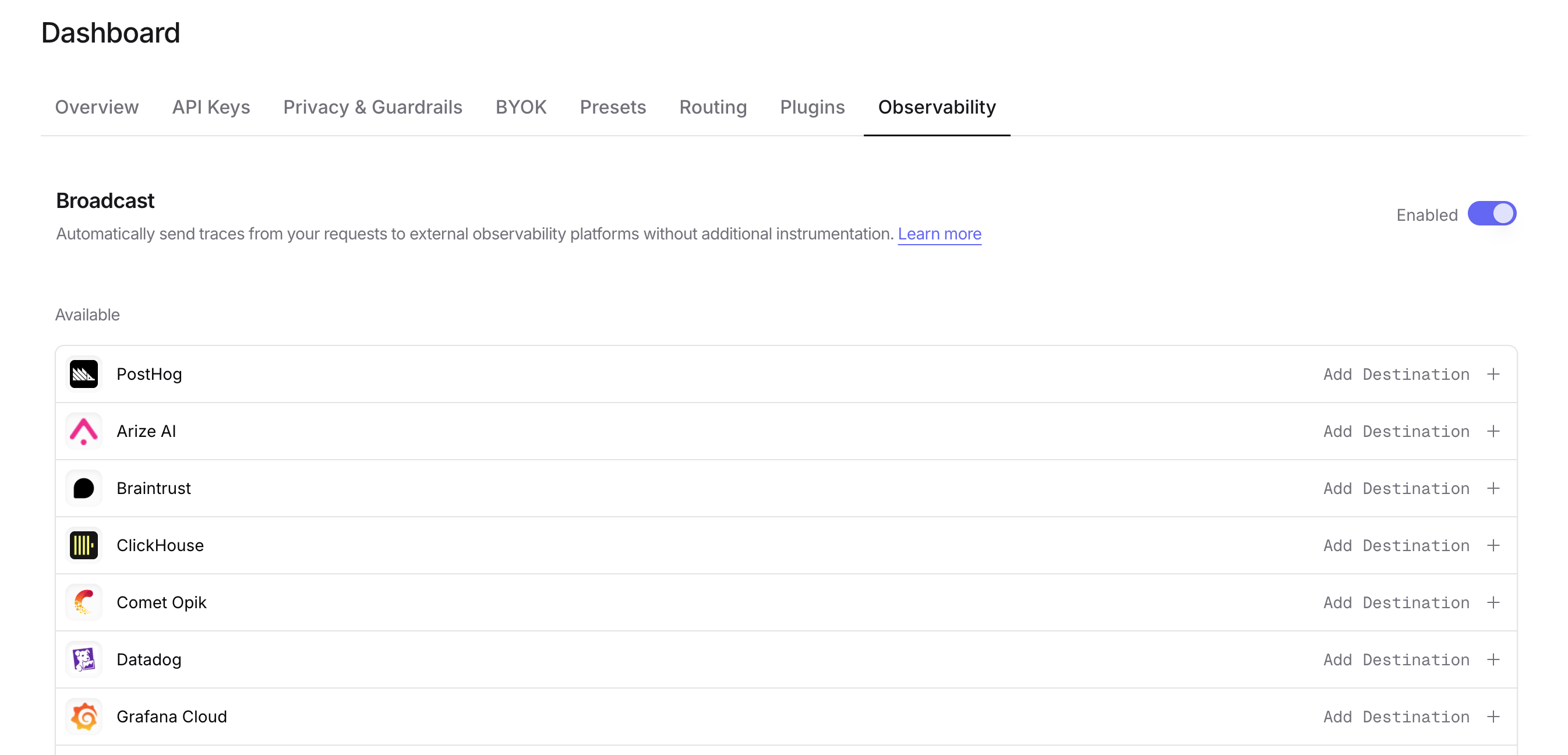
Step 3: Configure Datadog
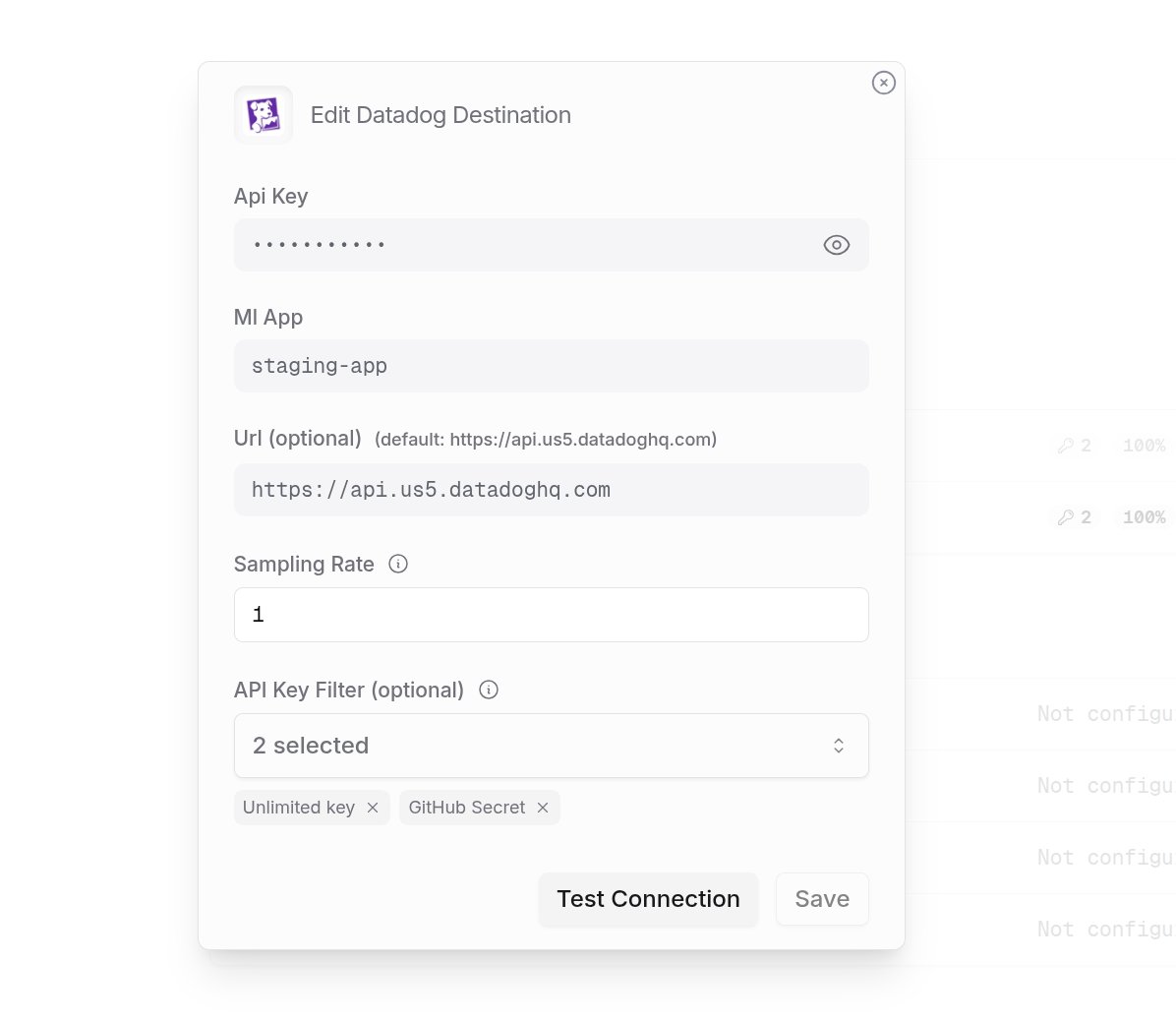
Click the edit icon next to Datadog and enter:- Api Key: Your Datadog API key
- Ml App: A name for your application (e.g., “production-app”)
- Url (optional): Default is
https://api.datadoghq.com(US1). Change for other regions
Step 4: Test and save
Click Test Connection to verify the setup. The configuration only saves if the test passes.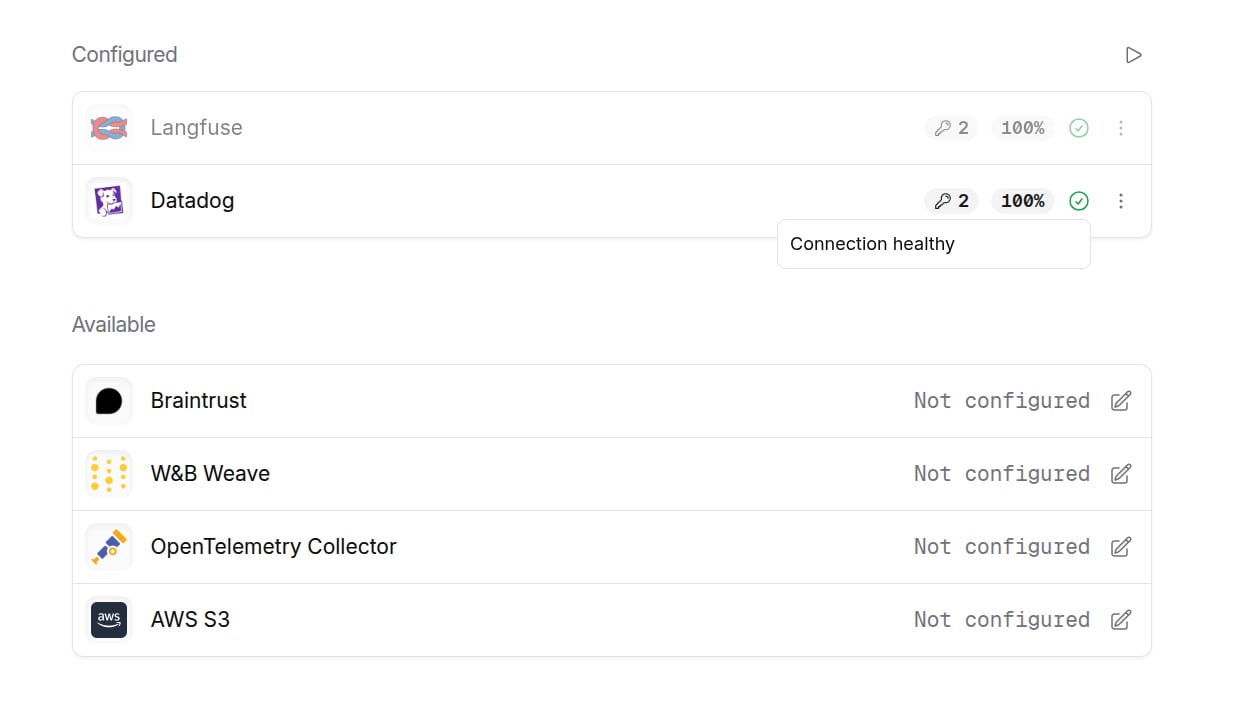
Step 5: Send a test trace
Make an API request through OpenRouter and view the trace in Datadog.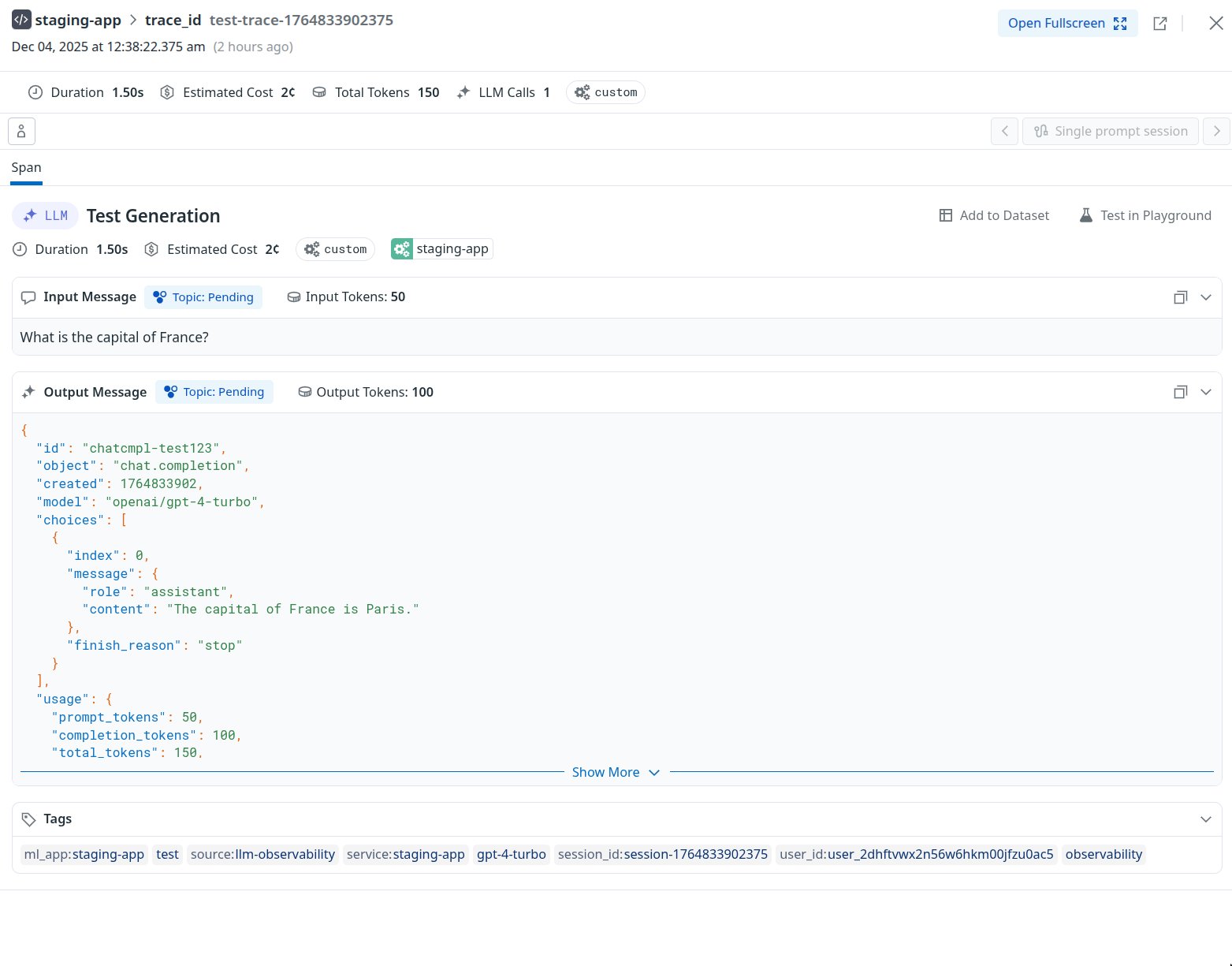
Custom Metadata
Datadog LLM Observability supports tags and custom metadata for organizing and filtering your traces.Supported Metadata Keys
Tags and Metadata
Datadog uses tags for filtering and grouping traces. The following are automatically added as tags:service:{ml_app}- Your configured ML App nameuser_id:{user}- From theuserfield in your request
trace are passed to the span’s meta object and can be viewed in Datadog’s trace details.
Example
Viewing in Datadog
In Datadog LLM Observability, you can:- Filter traces by tags in the trace list
- View custom metadata in the trace details panel
- Create monitors and dashboards using metadata fields