Amazon S3 is a scalable object storage service. OpenRouter can send traces to any S3-compatible storage, including AWS S3, Cloudflare R2, MinIO, and other compatible services.
Step 1: Create an S3 bucket and credentials
In your cloud provider’s console, create a bucket for storing traces and generate access credentials with write permissions to the bucket.
For AWS S3:
- Create a new S3 bucket or use an existing one
- Go to IAM > Users and create a new user with programmatic access
- Attach a policy that allows
s3:PutObject on your bucket
- Copy the Access Key ID and Secret Access Key
For Cloudflare R2:
- Create a new R2 bucket in your Cloudflare dashboard
- Go to R2 > Manage R2 API Tokens and create a new token with write permissions
- Copy the Access Key ID, Secret Access Key, and your account’s S3 endpoint
Step 2: Enable Broadcast in OpenRouter
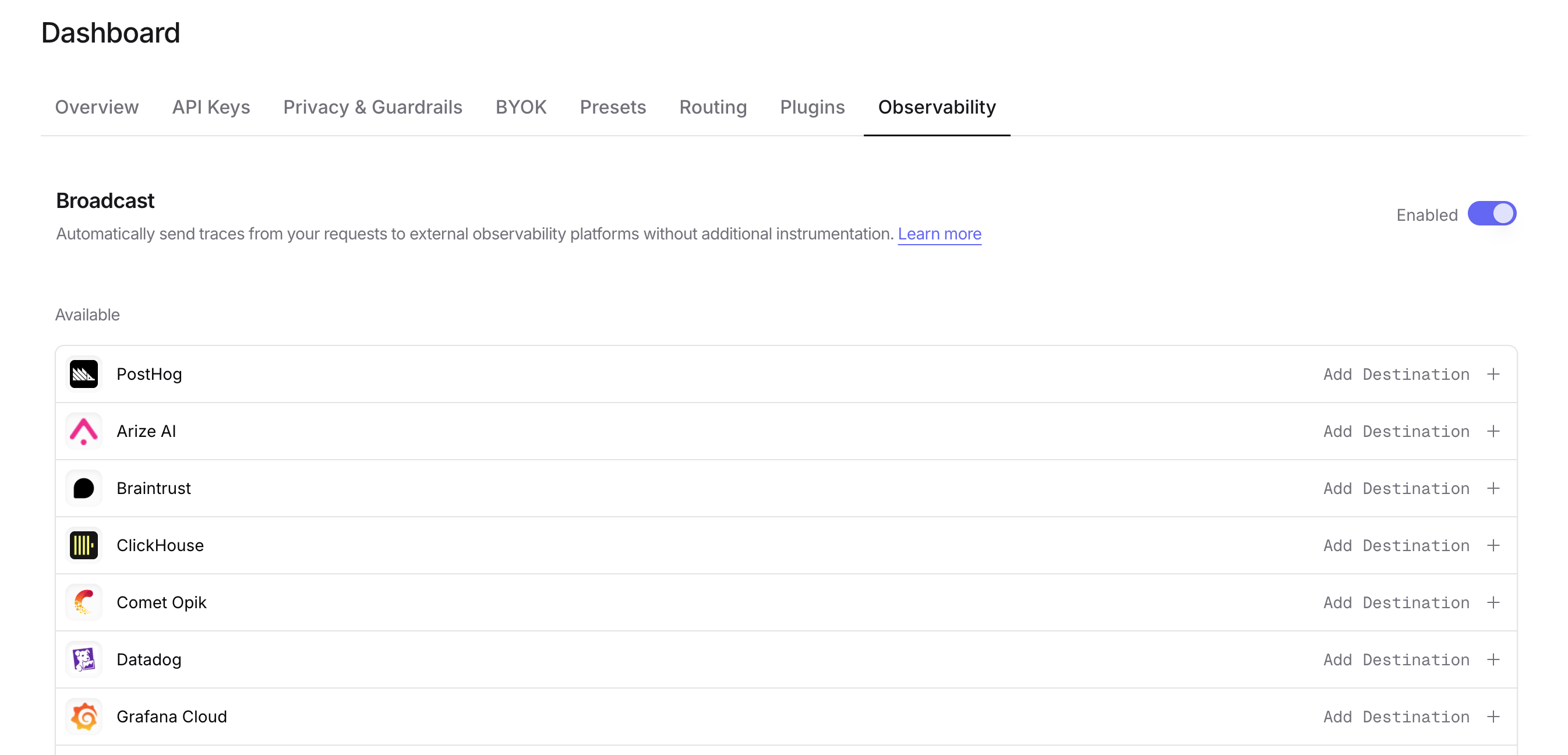
Go to Settings > Observability and toggle Enable Broadcast.
Click the edit icon next to S3 / S3-Compatible and enter:
- Bucket Name: Your S3 bucket name (e.g.,
my-traces-bucket)
- Region (optional): AWS region (auto-detected for AWS, required for some S3-compatible services)
- Custom Endpoint (optional): For S3-compatible services like R2, enter the endpoint URL (e.g.,
https://your-account-id.r2.cloudflarestorage.com)
- Access Key Id: Your access key ID
- Secret Access Key: Your secret access key
- Session Token (optional): For temporary credentials
- Path Template (optional): Customize the object path. Default is
openrouter-traces/{date}. Available variables: {prefix}, {date}, {year}, {month}, {day}, {apiKeyName}
Step 4: Test and save
Click Test Connection to verify the setup. The configuration only saves if the test passes.
Step 5: Send a test trace
Make an API request through OpenRouter and check your S3 bucket for the trace file. Each trace is saved as a separate JSON file with the format {traceId}-{timestamp}.json.
Path template examples
Customize how traces are organized in your bucket:
openrouter-traces/{date} - Default, organizes by date (e.g., openrouter-traces/2024-01-15/abc123-1705312800.json)traces/{year}/{month}/{day} - Hierarchical date structure{apiKeyName}/{date} - Organize by API key name, then dateproduction/llm-traces/{date} - Custom prefix for environment separation
For time-based batching (e.g., hourly or daily aggregated files), consider using AWS Kinesis Firehose instead, which buffers records and writes batched files to S3.
trace field is included in the JSON trace file stored in your S3 bucket. The metadata is available in the metadata field of each observation within the trace.
Example
Each trace file is a JSON object. Custom metadata keys from trace are stored in the metadata field and can be queried using tools like Amazon Athena, Presto, or any JSON-aware query engine:
Additional Context
- The
user field maps to userId in the trace JSON
- The
session_id field maps to sessionId in the trace JSON
- Trace files include full input/output messages, token counts, costs, and timing data alongside your custom metadata
Billing quantities
For a single-trace file, cache-write details live under trace.observations[].promptTokensDetails. With the Cost metadata opt-in enabled, the generation quantities also appear under trace.metadata.openrouter_generation and the generation observation’s metadata.openrouter_generation.
For example, the generation metadata may contain:
Batch files use traces[] instead of trace. Read each generation once. These representations repeat the same generation quantities; do not add them together. Null or omitted values are unavailable, while an explicit zero is a reported or observed zero. See Token and cost fields for estimation, TTL availability, and provider billing caveats.
Raw provider usage
The same metadata locations carry upstream_raw_response_usage as ordinary JSON, so no additional decoding step is needed:
The value can also be an array of usage reports or null, and its keys are the provider’s own. Query it with a JSON-aware engine rather than a fixed column list, for example json_extract(metadata, '$.openrouter_generation.upstream_raw_response_usage') in Athena. When it is null, check upstream_raw_response_usage_suppression_reason to distinguish suppression from unavailable usage.
Privacy Mode
When Privacy Mode is enabled for this destination, prompt and completion content is excluded from traces. All other trace data (token usage, costs, timing, model information, and custom metadata) is still sent normally. Raw provider usage is replaced with null and reported as privacy_mode, because a provider’s usage object can contain arbitrary future fields. See Privacy Mode for details.